How to Copy a Website Component into v0 and Bolt
- guide
- ai
- tutorial

v0 and Bolt both start from a prompt and give you a running UI in seconds. The prompt is the whole game, and the usual way to write one, by describing a design in words, throws away most of what makes a design good. This post shows the alternative: pluck the real component from a live site, paste it in, and let the tool work from the actual structure and styles.
The workflow is the same for both tools. The differences are in what you ask for afterwards, so we cover each.
What you are pasting
When you pluck a component, Pluck copies two things to your clipboard: a structured text prompt and a screenshot. The text contains the element tree with the computed styles for every node: layout, flexbox and grid, spacing, colours, typography, borders, shadows, transforms, images, plus how the component changes at each responsive breakpoint. The screenshot shows the tool what the result should look like.
Both v0 and Bolt accept text and images in the same message, so you paste once and both halves arrive together. Compared with pasting a screenshot alone, the tool no longer has to guess at the 14px versus 16px question or the exact hex value. It has them. There is more on this in Why Screenshots Make Bad Prompts.
Step by step
1. Install Pluck
Add the Pluck extension to Chrome. The free plan gives you 50 plucks a month, which is plenty to try this.
2. Pluck the component
Go to the site with the component you want and click the Pluck icon. In the Pluck card, choose Prompt and set the stack. v0 produces React with Tailwind and shadcn/ui, so choose React and Tailwind. Bolt will build whatever you ask for, so match the project you are about to create; React with Tailwind is a safe default there too. Or leave it on Auto.
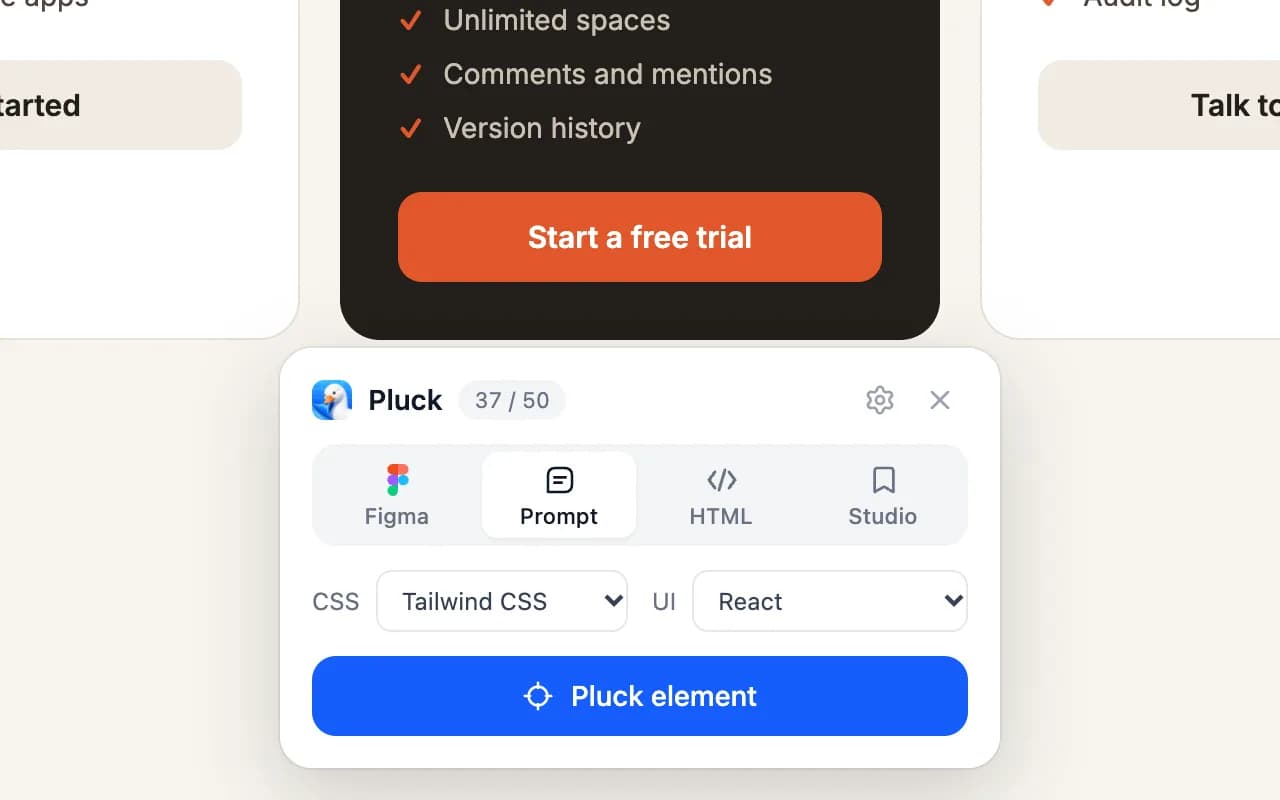 Prompt mode with the stack set to Tailwind CSS and React.
Then press Pluck element, hover until the outline covers the right element, and click. Pick the largest container that makes sense: a whole feature grid rather than one feature card, a complete navbar rather than its logo. The click copies the prompt straight away.
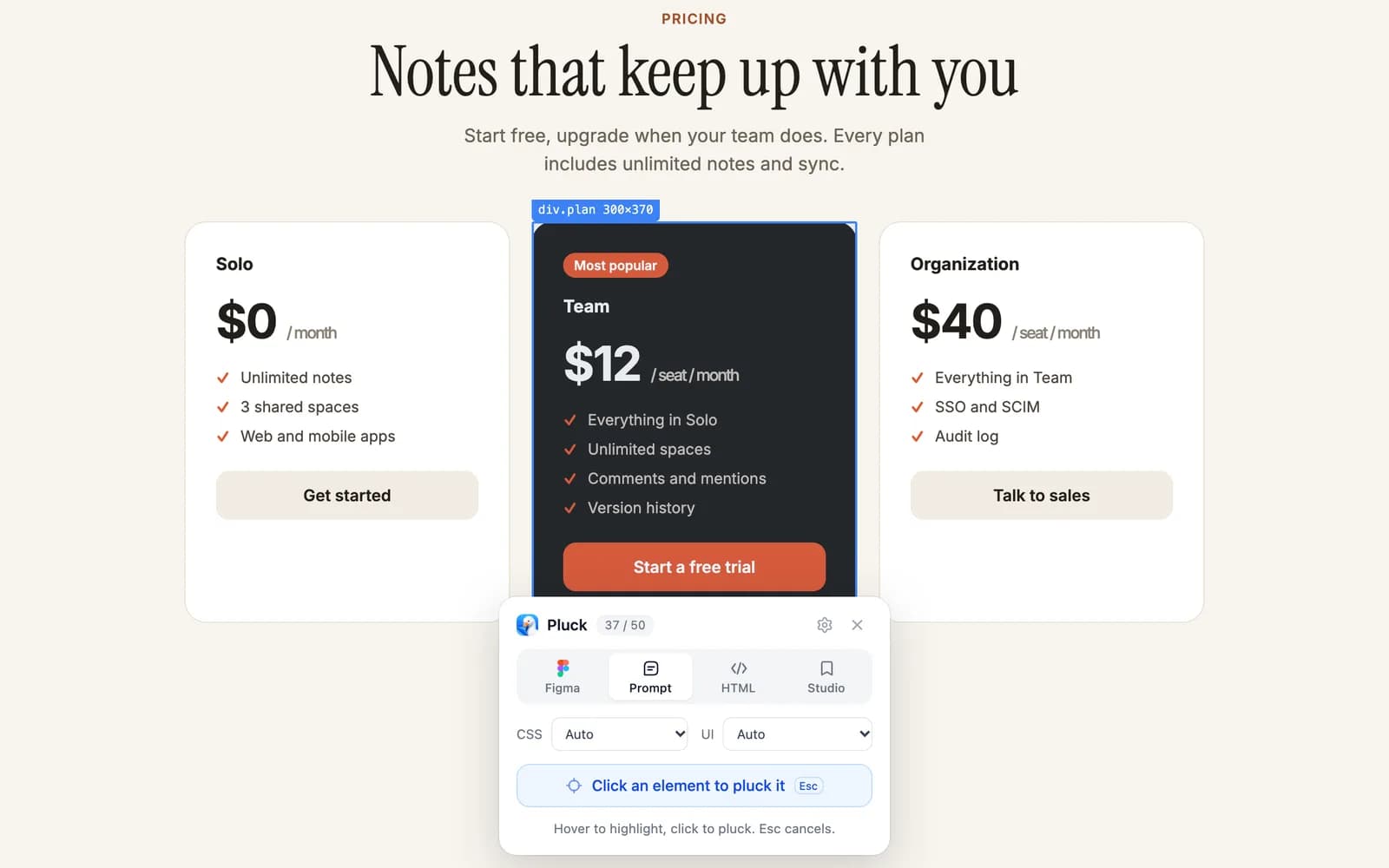 Hover to outline the element, then click to copy it.
3. Paste into v0
Open v0, start a new chat, and paste. The screenshot and the text land together. Then add one line of intent. Keep it short; the paste carries the design, your line carries the goal:
Recreate this as a React component with Tailwind and shadcn/ui. Keep the exact spacing, type scale and breakpoints. Make the plan data a props array.
v0 renders a live preview. The first result is usually close because it has real values to work from. Follow up with small, specific changes: "use our primary colour #4F46E5 for the highlighted plan", "the mobile breakpoint should stack at 768px like the reference". Because the breakpoints were in the paste, v0 can honour them instead of inventing its own.
4. Paste into Bolt
Bolt builds a whole project rather than one component, so frame the paste in terms of where it goes:
Create a Vite + React + Tailwind project. Add this component as src/components/PricingTable.tsx and render it on the home page. Keep the spacing, colours and responsive behaviour exactly as described.
Bolt scaffolds the project, writes the component and runs it in its sandbox. From there, iterate the same way: one change per message, referring to the reference when you want it kept and to your own brand when you want it changed.
If you are building a multi-section page, pluck each section separately and paste them one at a time, in order, each with a line saying where it goes. Bolt handles "add this as the next section below the hero" well, and you end up with a page assembled from real references rather than one long description.
What to do with the result
Treat the first generation as a draft that is right about the structure. The things to replace are the things that belong to the original site: copy, images, logo, and often the exact colour combination. "Keep the layout, swap in our content" is the normal second message. There is a longer discussion of where the line sits in Is It Legal to Copy a Website's Design?
For plucks from your own site, there is nothing to replace. Rebuilding an existing page in a new stack is one of the best uses of this workflow, and both tools are good at it.
Tips specific to each tool
v0
- v0 knows shadcn/ui well. If the plucked component is a button, input, dialog or dropdown, say "use the shadcn equivalent" and it will map the styles onto the library's component rather than hand-rolling it.
- Ask for the component in isolation first, then ask v0 to place it in a page. It keeps the generation focused on fidelity.
- Use the "fork" option on a generation you like before asking for a risky change.
Bolt
- Bolt can edit files directly. If a style is slightly off, say which file and which value: "in PricingTable.tsx the card padding should be 32px, as in the reference".
- Bolt's sandbox runs the real app, so resize the preview to check the breakpoints the paste described.
- For bigger pages, start with the layout shell, then paste sections in. Pasting five plucks in one message gives the model too much to hold at once.
Mixing references
Neither tool limits you to one reference. Pluck the navbar from one site and the feature grid from another, paste them in consecutive messages, and ask for a page that uses both. If you want to see the combination as a picture before you commit to code, drop the same plucks on a board in Pluck Studio, connect them to a prompt, and generate. That gives you a mock to agree on, and the plucks are still in your library to paste into v0 or Bolt afterwards. How to Build a Moodboard from Real Websites covers that side.
Other tools
The same paste works in Lovable, Cursor, Claude Code, Codex and ChatGPT. We have separate guides for Lovable, Claude Code and Cursor, and dedicated pages for v0 and Bolt.
Install Pluck and try it on the next component you were about to describe in words. The difference on the first generation is the whole point.